This guide will help you set up and configure your campaign to be accessible for Telegram mini apps.
Not sure how Bots and Mini Apps campaign types differ? Check out this guide to better understand the differences.
Click on the Campaigns tab in the main menu.
Select the Telegram Mini Apps campaign type.
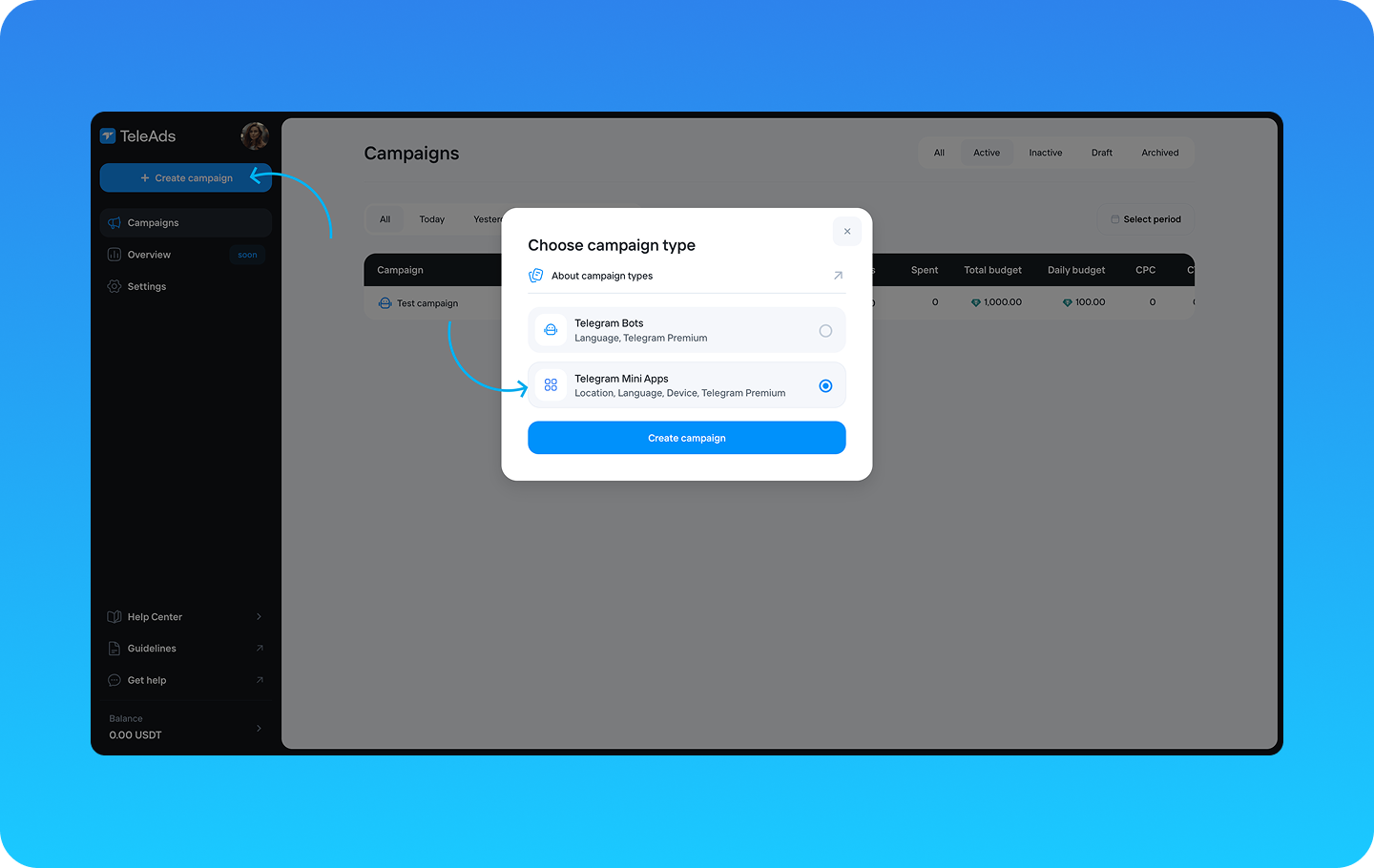
You will be prompted to provide the following campaign details:
Campaign Name (optional) - Enter a descriptive name for your campaign.
Campaign Objective – Select the campaign’s goal.
Total Budget – Set the overall budget allocated for this campaign.
Daily Budget (optional) – Specify a maximum spend per day to control pacing.
Cost per Mile (CPM) – The cost per 1,000 impressions, specified in USDT.
Start and End Dates (optional) – Set the campaign duration. Note that the timezone used can be configured in the Settings tab.
Location - Select the countries where you want to target users based on their IP.
Languages – Select the languages you want your campaign to be displayed in.
Devices - Select the operating systems (OS) you want to target. If none are selected, all devices will be included in the targeting.
Telegram Premium only (optional) – Enable this if you want to target only Telegram Premium users.
Once all details are filled in, you can save your campaign as a draft or proceed to the next step by clicking the Go to Creatives button.
In this step, you will set up the visual and textual components of your campaign.
Select the Creative Type: Choose the type of creative for your campaign—either non-skippable video, skippable video, or static creative.
Configure the Creative Details: Based on the creative type chosen, fill in the necessary details:
Creative Name (optional) – Assign a name to your creative for easy identification.
Video – Upload a video that will be displayed in your ad.
End screen (optional) – Upload an icon that will be displayed at the end of the video.
Title - Provide a title for your creative.
Subtitle (optional) - Add a subtitle for extra context or information.
Button destination (for skippable video) - Choose the action the button will take when clicked.
Button Text – Define the action text (e.g., "Learn More", "Join Now").
Button Link – Insert the URL where users will be redirected.
Creative Name (optional) – Assign a name to your creative for easy identification.
Image – Upload an image that will be displayed in your ad.
End screen (optional) – Upload an icon that will be displayed at the end of the campaign.
Button Text – Define the action text (e.g., "Learn More", "Join Now").
Button Link – Insert the URL where users will be redirected.
On the right-hand side, you will see a real-time preview of your campaign based on your creative setup.
You can Save as Draft if you want to edit it later.
Click Launch Campaign to submit your campaign for review.
Once launched, your campaign will be reviewed by our moderation team. The review process typically takes up to 2 hours.
If approved, the campaign status will update to Active in the Campaigns list tab.
If rejected, you will receive feedback on necessary adjustments.
Your campaign is now ready to reach your target audience on Telegram